Wednesday, 16 December 2015

Windows 10 Problems and Issues

             If you have installed Windows 10 RTM Final version, you may be facing some Windows 10 problems and issues. Fortunately, the list of known issues is not long and is limited to some countries for some reason. The best thing about bugs in Windows 10 or known issues is that Microsoft works on them as soon as they are notified. Despite that, here are the some bugs and issues.

Windows 10 Problems and Issues

1] Windows installation may terminate with SOMETHING HAPPENED message

In some languages, you may see the message “Something happened” with the only option being CLOSE button. When you click the button, the installation terminates. This has been noticed if you chose to create an ISO and are using a burned DVD or USB to install Windows 10.

Windows-10-known-issyes
Though not official, the problem is attributed to Language settings in Windows OS. Check the Language and Region settings in Control panel of Windows 7 or Windows 8.1 that you are upgrading using the ISO file. The fix being widely used is to re-download the US English Language pack and install it on the computer you are trying to upgrade. That is, you have to go to Control Panel, open the Language and Settings and make sure US English is installed. You may have to install the language pack again for Windows 10 ISO to work. Go here to see how to install language packs in Windows.
A better fix is to use “Upgrade This PC” option using the Windows 10 Media Creation Tool. The latter option would remove the need to create ISO based installation media (DVD or USB) and will do an in-place upgrade of Windows 10. The in place upgrade does not, likely, go wrong with the weird “something happened” message according to reports on social media. You will need an active Internet connection though, for every PC you upgrade this way.
In short, performing an in place upgrade is a better option than going for ISO files of Windows 10 as of now.
The “Something Happened” message is too vague and does not tell you what went wrong. The second line too, as in the image, says “something happened”. Right now, it has become the center for jokes and memes on social media. Microsoft may soon publish a proper fix or explanation for the error message. I am expecting that, at least.

2] Start menu cannot hold more than 512 items

Though 512 is a big number and I do not think anyone would pin that many programs or apps to the Start menu, it is still a known issue in Windows 10 that if you go for more than 512 apps, they will disappear from the Start menu. As long as the number of apps pinned on Start menu is less than 512, the app tiles will be visible properly. If you cross the number, the Start menu is messed up.
Microsoft has information on this and they are apparently working to remove the cap.

3] Clipboard issues in Windows 10

This is another known issue – brought to notice by @TomWarren. He tweeted the following:
OK so I am not alone, there is an issue with Windows 10 when it sometimes doesn’t copy using Ctrl+C. Lots of people seeing it. Yikes – Tom Warren (@TomWarren) Jul 29, 2015
There is no fix except to press the key combination again and again until it is copied to the clipboard. Another better option is to right click and from the context menu that appears, select COPY or CUT as the case may be.

4] Windows Store Crashes

This is more of the Store app issue than being a Windows 10 operating system issue. The Windows 10 store app keeps on crashing when you try to download anything. The issue was reported by many – including TWC authors.
Here are two posts from Twitter that further confirm the issue with Windows store:
So far, upgrade to #Windows10 has been pretty smooth on 5 year old PC except I can’t use Cortana or install apps from the Windows store. — CheckedShirtMatt (@ec1matt) July 29, 2015
And,
Why can’t I install anything from the Windows Store I just wanted to play C++ Minecraft — Aar (@Aarmastah) July 29, 2015
There is no fix on the issue but it has been notified to Windows team. I am hoping the issue will be fixed soon.

5] Wireless networks are not available

After you upgrade from Windows 8.1 to Windows 10 Pro or Windows 10 Enterprise, no wireless networks are available. Wired Ethernet connections may also not function properly, if you are using built-in Ethernet adapter or a USB Ethernet adapter. This could occurs due to presence of unsupported VPN software. If you are facing this issue, read Wi-Fi does not work after upgrading to Windows 10.

6] Start Menu not working

Some users who upgraded are finding out that their Start Menu does not open in Windows 10. This post will help you fix the problem.

7] Windows Store apps are not opening

If Windows Store apps not opening in Windows 10, after you upgraded, then this post will show you how to fix the problem quickly.

8] Windows Store is not opening

If Windows 10 Store is not working, then run this troubleshooter & fixer from Microsoft.

9] Windows 10 Settings app does not open

For some the Windows 10 Settings app does not open or launch. Or it opens the Store app instead. Use the Fix It mentioned in the tool. Update KB3081424 will prevent the issue from re-occurring.

10] NVIDIA Graphic Cards not compatible

The graphic drivers are not compatible with Windows 10 at the moment. NVIDIA is working on the issue and soon it will provide compatible drivers so that users can upgrade to Windows 10 without problems. You can search for your NVIDIA GeForce drivers here. Nvidia has released new WHQL drivers for Windows 10.

11] INACCESSIBLE_BOOT_DEVICE error

See this post if you receive INACCESSIBLE_BOOT_DEVICE error after you have upgraded to Windows 10.

12] Office documents do not open

Go here if after upgrading to Windows 10, you find that some of your Office Word, Excel or PowerPoint documents do not open.

13] Installation, Upgrade & Activation problems

14] Windows 10 can’t connect to Internet

15] Quick Access is not working

16] Windows 10 Sound not working

17] Other

NOTE: Windows 10 users may want to download FixWin 10 for Windows 10. It automates many fixes and lets you resolve issues in a click!

If you know of anything more that can be included in the list, please comment


see also : Wi-Fi does not work after upgrading to Windows 10
see also : How To Install Language Packs In Windows 7
see also : Troubleshoot Windows 10 Sound and Audio problems
see also : Quick Access in Windows 10 is not working
see also : Windows 10 cannot connect to Internet
see also : Troubleshoot Windows 10 Activation Errors: List of error codes and fixes
see also : Windows 10 Installation or Upgrade Errors: 80240020, Something Happened, etc
see also : Cannot activate Windows 10. Product Key blocked
see also : Office documents do not open after upgrading to Windows 10
see also : Nividia releases new WHQL drivers
see also : INACCESSIBLE BOOT DEVICE error in Windows 10
see also : Fix: Windows 10 Settings app does not open or launch
see also : Windows Store not working in Windows 10 – Automated Fix
see also : Windows Store apps not opening in Windows 10
see also : Start Menu does not open or not working in Windows 10

Tuesday, 15 December 2015

MsConfig Utility In Windows 10 And How To Use It?


Windows essentially being such a versatile operating system, can run into various problems and performance issues over its course of service. Most of these issues and problems are software related and can one you easily troubleshoot them, only if you know your way around your operating system.
Most Advanced Windows users are very much familiar with the MsConfig utility, and use it to its full potential. The utility offers various options that can help you troubleshoot performance issues and other problems with your machine. If you are not familiar with this utility, you should probably back up your data before you proceed any further into the process of discovering MsConfig and its various uses.
Note: you can also create a manual restore point , if you are new to this, it will be very useful if something goes wrong by mistake.
MsConfig is available for all users , running Windows Xp or above. It is a very versatile tool, that can help you configure the start up of your machine. Additionally it can be of a lot more use if you are looking to troubleshoot performance and stability issues.

How Do I Access The MsConfig Utility?

The MsConfig utility can be opened from the Run command box. This can be accessed via the task manager
1- Press Windows key + r
2- The run Box will open.
3- This is the famous Run command box we use to open different utilities in windows.
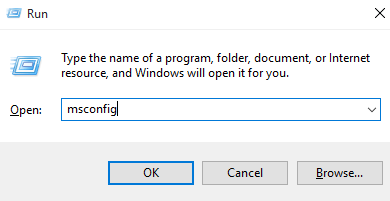
4- Type in-msconfig, and click on Run or Hit Enter.

msconfig
Windows will now identity the command entered by you, and run the associated utility with it, in this case MsConfig.
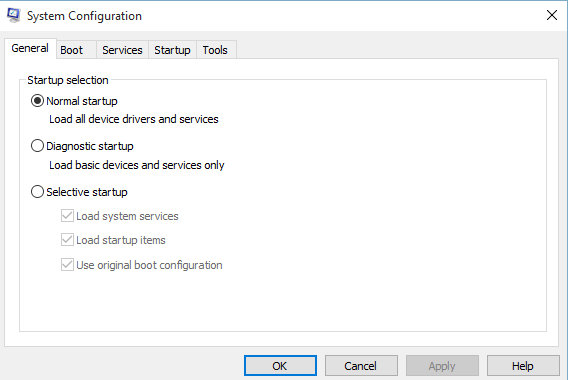
Once it opens, you will see a window consisting of 5 different tabs.

msconfig-panel
These tabs and the various options under them, will help you change and configure the start up of your System, diagnose windows for problems and performance issues, fix those issues, disable and restrict various services and also run major Windows tools. In all you can say that MsConfig is your little toolbox to help you maintain the health of your PC.
I will now explain each tab and its various options and the effects of their changes on Windows , in order to help you understand MsConfig and use it to its full potential. You would be able to improve the performance of your Pc and troubleshoot various different problems.

Tab No. 1- General

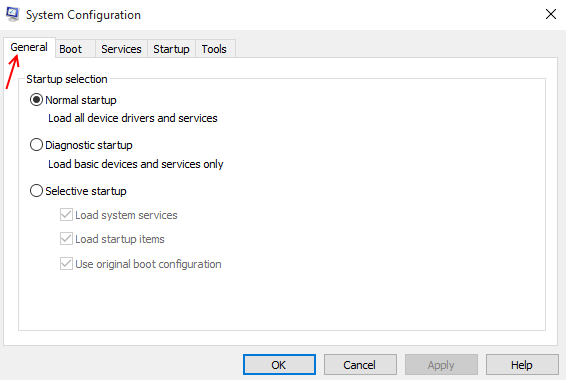
The general tab will be displayed by default when you first run MsConfig. It will have the following three start up options, that you can choose from. These options will boot your machine into the selected mode, the next time it starts up.

msconfig-general
1- Normal Startup
This is the usual Windows startup, where the operating system will load all the locally installed drivers and programs along with the default services and drivers.

2- Diagnostic Startup
This startup is similar to starting Windows up in safe mode. You can use it to check for errors and look for stability, health and other performance issues in your operating system as well as the machine. When windows boots up next time, with this option selected, it will only load up default basic services and drivers, and nothing else. This will leave out all the third party and locally installed drivers and programs, which can help you assess and diagnose the performance of your machine.
3- Selective Start up
This is an option that offers further three choices. These checkboxes will help you toggle the various startup services and programs that you want to run via the services and startup tab. You can toggle each checkbox depending on your preference.

Tab No. 2- Boot


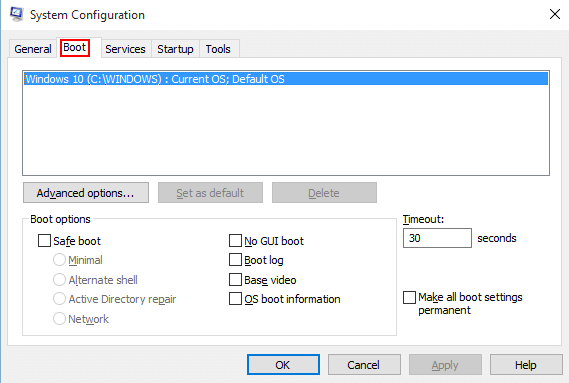
msconfig-boot
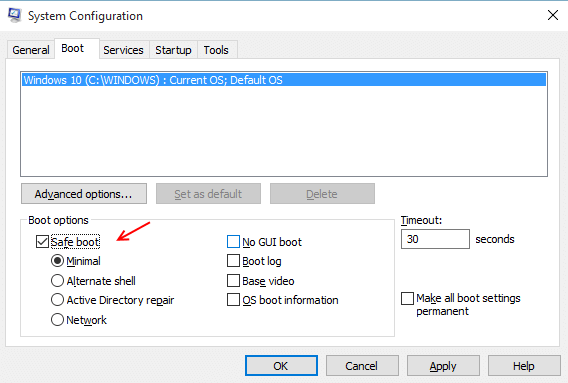
This is the master tab to control all the boot up settings of your Operating System. It has various different options and checkboxes that can change the boot process of your Windows. It also has Advanced options that can help you control your Machine’s hardware.
When you click on and open the Boot Tab, you will see a White box with the list of operating systems installed on the current machine.
Boot options, has various options, using which you can trigger your Windows into different booting modes.
You can boot up windows into four different kinds of safe mode, depending on the error/ issue you are facing.

msconfig-safe-boot-windows-10
Timeout , specifies the Amount of seconds Windows waits in the Boot menu, before loading the default operating system.
The advanced options can help you toggle the number of CPUs you put into work, the next time your machine boots up. You can also limit the amount of RAM memory that will be used by the operating system in the next startup.

Tab No. 3- Services


msconfig-services
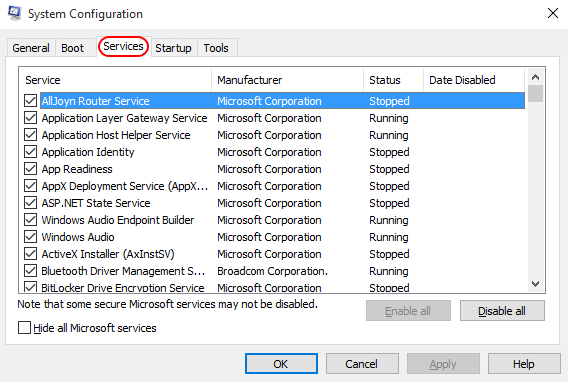
This tab will display all the Services configured to start up, when the operating system boots up.
You can hide all default Windows services to avoid messing up your settings using the option located in the bottom left corner. You will then be able to see only third party services that have are locally present in your operating system. Use this to your advantage and disable your prime suspects that could be causing stability issues in your operating system. Or you can also disable all of them using the option located in the bottom right corner.

Tab No. 4- Startup


msconfig-startup
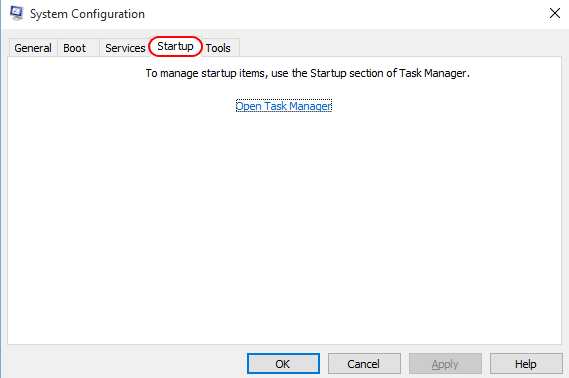
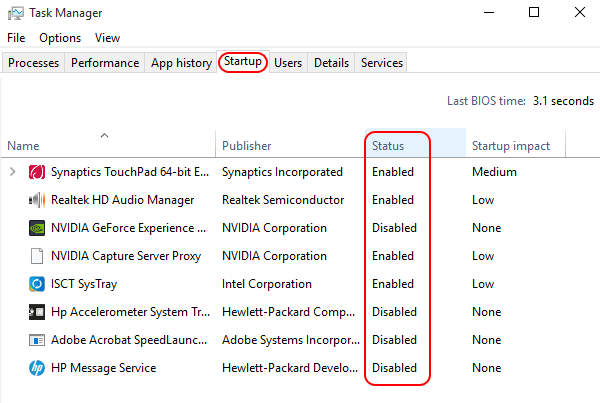
Clicking this tab will redirect you to the Task Manager. You will be taken to the startup tab of the task manager, which is to essentially say that they both are the same. You can use it to disable or enable various startup program and troubleshoot your system instability.

msconfig-startup-enable-disable

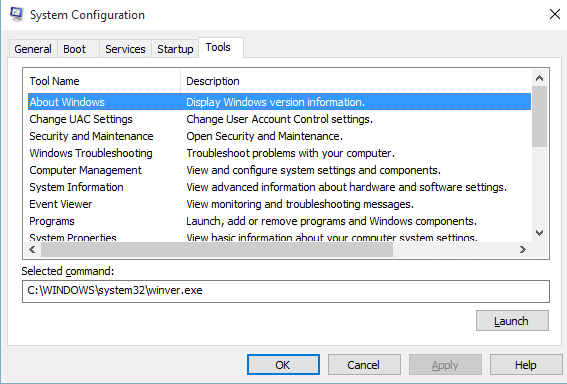
Tab No.5- Tools


msconfig-tools
Once you click this tab, MsConfig will show you various utilities and tools that you can launch directly from MsConfig. You can go through the list of administrative tools and select the one you want to run, and simply click on launch. This will open the selected program or utility. This can be particularly useful if you are having problems with your file explorer.
Once you are done making changes in all the five tabs , you will have to first Click on apply and then Ok, to make sure the changes take effect. Windows will then ask you to restart your machine for all the changes to take effect.
Note: if you have enabled the safe mode, you will have to disable it again manually to exit the safe mode and boot up the operating system normally.
MsConfig is thus a very useful and versatile utility that can help you troubleshoot performance issues and configure Windows startup

Monday, 14 December 2015

Why Technology Keeps Failing You

                          Ok, has this ever happened to you: You get frustrated by the inefficiency of your team. You know things can be done better. You ask some colleagues how they've addressed the issue or you turned to Google or some other form of research. Eventually, you find a technology that looks promising. You sit through some demos. You get others to sit through some demos. It all looks so promising. You can't wait to start. You sign the deal, take the plunge and begin the implementation. 

Then all hell breaks loose! 
Was it that the vendor didn't really understand the requirements? Maybe your team wasn't really committed? Perhaps the technology wasn't as good as the demo? 
Or maybe, it's your fault. 
Oops! You weren't expecting that! Let me explain. 
The only way change happens inside an organization is when someone in the organization is able to break out of groupthink and see the organization from an outside lens. If this is you, then you see things that are not working the way they should. Often this is because you have been exposed to another way of doing things. Everyone else in the organization seems happy with the status quo. You, however, become increasingly dissatisfied.
Eventually, you realize you need outside help. This help usually shows up in the form of a technology vendor. By virtue of implementing the technology in various environments, the vendor will have a lot of ideas as to how you can address your issues. That's all well and good. There's just one thing amiss. The vendor doesn't understand your organization.  

You Can Lead a Horse to Water, But...

The status quo is more than the problem. The status quo includes current work processes, associated skills sets, social interactions, politics, egos, emotions and fear of loss. All change brings loss. Even a gain is a loss, as it means moving away from something toward something else. An outside vendor can bring you the best technology that precisely meets your needs. An outside vendor can implement this technology flawlessly. An outside vendor can deliver the solution on time and on budget. What an outside vendor cannot do is get your people to embrace and adopt it. This can only be done internally. The old saying, "you can lead a horse to water, but you can't make him drink" is totally relevant.  
To increase your success rate, I suggest the following steps.

1. Focus on the Process

If you are the change agent, you are light years ahead of everyone else in the organization. You have developed an objective, outside perspective of the organization. No one else has this... yet. You see the problem so clearly. No one else does... yet. Rather than excitedly explaining how things can be so much better, slow down, back up and take a breath. Your initial challenge is ensuring the people who will eventually be responsible for adoption, agree there is a problem to be solved and become motivated to solve it. 
One of the most effective tools for highlighting a problem and its implications is process mapping. Remind the team that their ultimate purpose is to create value for the customer. Then review how your processes work and where the bottlenecks occur. Explore the impact of bottlenecks on the customer experience. Finally, explore revised processes that eliminate the bottlenecks and ultimately create a superior customer experience. Moving your team mentally and willingly from where they are to where they should be, without technology, is the most important step in introducing new technology. This "blueprint" becomes the criteria scorecard for evaluating new technology. 

2. Focus on the People

Even though your "to be" state is far superior to your "as is" state and the future of your company may depend on making the change, don't expect that everyone will support it — even if they agree with it. Remember, most people are tuned into station WIIFM (what's in it for me?). Have you ever been in a group photograph? What's the first thing you do when you see the photograph? That's right! You look for yourself in the picture. That's how people are wired.
Your future state process map is like a group photo. When your people look at it, they are looking for themselves in the picture. Do they have more responsibility or less? Are their skills needed more or less? Will there be more stress on them to learn and grow or less? Even though it makes sense for the corporation, your people need to know it makes sense for them. This is where you need to be resolute, but compassionate. Often, the organization that doesn't change, fails. You can't afford to be held back, but you can't go forward without your people believing you really care about them and their colleagues.

3. Focus on Results

Finally, once the technology is implemented, get the focus off the technology! Too many leaders focus too much attention on the adoption of the technology. They look for the most sophisticated and all-encompassing technology without regard to its usability. They push the technology's features and build a culture of coercion and forced compliance. That only breeds resistance and sabotage.
Instead, go back to your future state process map and the results you envisioned. Ensure there are key metrics associated with the future state and set stretch goals for the team so that they are inspired to use all the resources at their disposal to achieve the goals. Technology adoption is not an end in itself. It's a means to an end. Focus on the end state and provide coaching and support on the tools that will help your team be successful. 

Slow Down to Speed Up

Leaders, by nature, are visionary. You see things others don't. That's why you're the leader! Because this comes so naturally to you, it's easy to forget that other people don't think the way you do nor do they see things that you can see. Be careful not to push your people too fast. Use process maps to paint a picture and tell a story. Make it easy for your team to see the need and the possibilities. Make sure they believe you care about them and their success in the new world. Finally, push for real business results that can only be achieved with the adoption of the new ways and means.
Don't be shy about letting them know you are all about results. It won't take them long to figure out that if you've given them the tools, but they didn't use them and didn't achieve the results, they won't have a leg to stand on. Your relentless focus on results will make your team thirsty for the tools that will enable the results. I mean, why would you lead a horse to water if you haven't made him thirsty first?